Appearance
Quick start
This quick start shows how to run Motion 2.0 in its demonstration map. The map contains the supplied Motion character.
Goal
At the end of this tutorial, you can select Play and move the supplied Motion character. The character has walking, sprinting, crouching, jumping, camera motion, and Gameplay Ability System (GAS) movement states.
Prerequisites
- Use Unreal Engine 5.6, 5.7, or 5.8.
- Configure Enhanced Input for your project.
- To add Motion to your character, use a character or PlayerState that owns an Ability System Component (ASC).
- The preferred ASC lookup method is
IAbilitySystemInterface. Motion can also find an ASC component on the character or its PlayerState. - If you use the supplied Motion attributes, Motion creates
UMotionAttributeSeton the server during the first ASC initialization.
Add the plugin
Add Motion 2.0 to your Fab Library.
In Epic Games Launcher, open Unreal Engine > Library > Fab Library.
Install the plugin for your engine version.
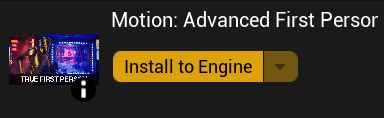
Select one installation method:
- Copy the
MotionCorefolder to thePluginsdirectory of your project. - Start your project and enable the MotionCore plugin in Edit > Plugins.
- Copy the
In Project Settings, find Near Clip Plane and set it to
5.0.This value prevents clipping of close first-person arms and items during movement.
Restart Unreal Editor.
Use the Motion demo setup
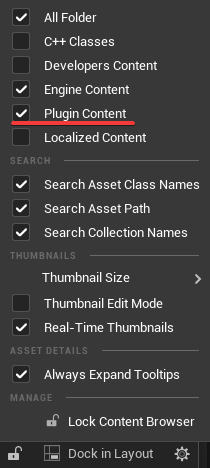
Enable Show Plugin Content in the Content Browser.
Open the default demonstration map at
Plugins/MotionCore/Content/Motion/Maps/Default.Set the demo GameMode to
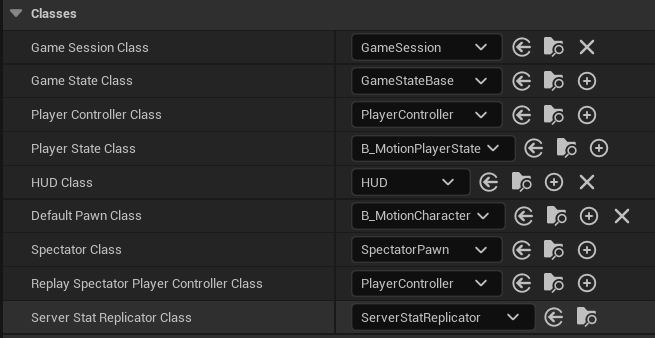
B_MotionGameMode, or modify your own GameMode to use the Motion demo character and PlayerState.
INFO
B_MotionPlayerState contains an AbilitySystemComponent. You can use another PlayerState that exposes an AbilitySystemComponent. Motion creates its default AttributeSet when necessary.
- Find
B_MotionCharacterinPlugins/MotionCore/Content/Motion/Blueprints. - To examine the defaults, open the character.
The movement, breathing, sound, and camera components use the profile assets in Plugins/MotionCore/Content/Motion/Profiles/v2_0_0.
To tune Motion for your project, duplicate and assign profile assets with Component profiles.
Play the demo
- Select Play.
- Use these controls:
| Input | Action |
|---|---|
WASD | Move |
Space | Jump |
Shift | Sprint |
Ctrl | Crouch |
| Mouse | Look around |
- Confirm the character can move, sprint, crouch, and jump.
Optional: Duplicate the Motion character
This procedure is optional. Do it when you want a starter character instead of an update to your project character.
- Duplicate
Plugins/MotionCore/Content/Motion/Blueprints/B_MotionCharacterinto theContentfolder of your project. - Rename the duplicate for your project.
- Point your GameMode or pawn selection at the duplicate.
- Duplicate Motion profile assets only when you want to change shared movement, camera, sound, or breathing feel.
Use the shipped character as a reference for component layout, default assignments, and Blueprint code.
For a project character, use Add Motion to a character instead.
Next steps
Move from the demo path to the page that matches your next task.
Support
Join the community Discord for support.