Appearance
How to set up MotionAnimInstance
Use this guide when an Animation Blueprint must use Motion movement tags or ground data. You can also configure Gameplay Ability System (GAS) binding state or optional first-person item state.
MotionAnimInstance is modular. A character Animation Blueprint can use it only for movement state. The native Motion first-person item solution is not necessary unless you want to use it.
Set the parent class
- Create or open the character Animation Blueprint.
- Open Class Settings.
- Set Parent Class to
MotionAnimInstance. - Compile the Animation Blueprint.
The parent class is the primary setup check. After you set it, the Animation Blueprint can use Motion tag mapping, ground data, and optional item state.
Inspect the supplied Animation Blueprints
Enable plugin content. Then, use the supplied assets as references:
| Asset | Path | Use |
|---|---|---|
ABP_Mannequin_Base | Plugins/MotionCore/Content/EpicGames/Characters/Heroes/Mannequin/Animations/ABP_Mannequin_Base | Primary Motion character Animation Blueprint reference. |
ABP_UnarmedAnimLayers | Plugins/MotionCore/Content/EpicGames/Characters/Heroes/Mannequin/Animations/Locomotion/Unarmed/ABP_UnarmedAnimLayers | Default unarmed linked-layer pose set. |
ABP_PistolAnimLayers | Plugins/MotionCore/Content/EpicGames/Characters/Heroes/Mannequin/Animations/Locomotion/PIstol/ABP_PistolAnimLayers | Built-in item/stance linked-layer example. |
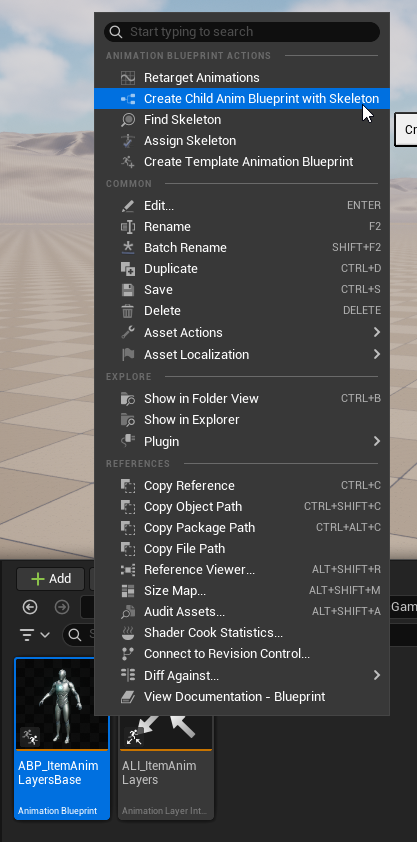
ABP_ItemAnimLayersBase | Plugins/MotionCore/Content/EpicGames/Characters/Heroes/Mannequin/Animations/LinkedLayers/ABP_ItemAnimLayersBase | Base class for linked animation layer variants. |
ABP_CustomGraphForPistol | Plugins/MotionCore/Content/Motion/Items/Pistol/ABP_CustomGraphForPistol | Custom first-person item overlay graph example. |
Duplicate or inspect only the assets for your path. A movement-only AnimBP can inherit from MotionAnimInstance without the pistol layer, linked layer assets, or custom item overlay graph.
For a project-owned Animation Blueprint, create a child or duplicate from the supplied animation assets. Do not edit plugin content directly.
Map GameplayTags to variables
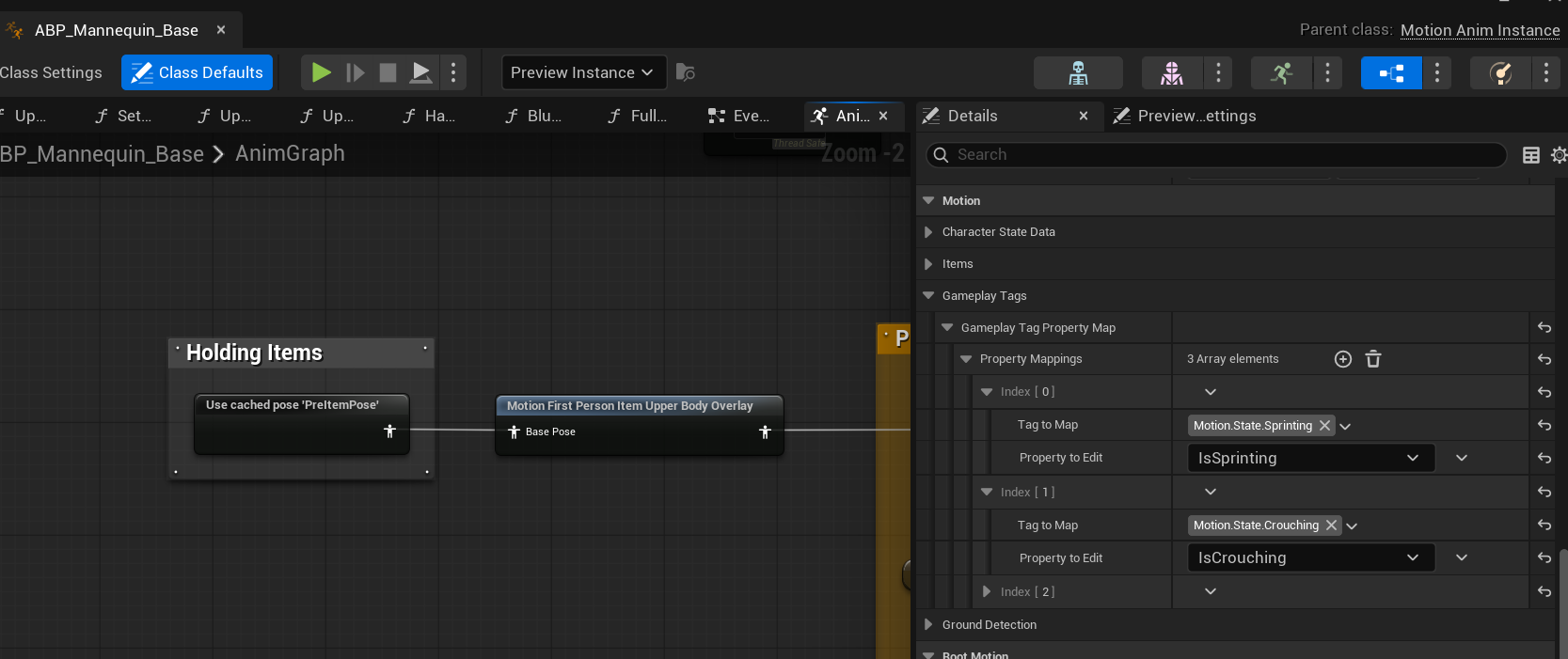
- Open the Animation Blueprint Class Defaults.
- Find
GameplayTagPropertyMap. - Add entries for the applicable graph tags.
Usual mappings:
| GameplayTag | Property | Type |
|---|---|---|
Motion.State.Walking | bIsWalking | Boolean |
Motion.State.Sprinting | bIsSprinting | Boolean |
Motion.State.Crouching | bIsCrouching | Boolean |
Motion.State.Jumping | bIsJumping | Boolean |
Motion.State.HoldingItem | bIsHoldingItem | Boolean |
Motion.State.StaminaDepleted | bIsStaminaDepleted | Boolean |
The properties must already exist in the Animation Blueprint and match the expected type.
Use Motion movement data in the graph
- Use mapped booleans for state machine transitions.
- Use
GroundDistancefor landing preparation or foot IK.
Use optional item presentation data
Use these accessors only when the Animation Blueprint participates in the Motion first-person item system. For most automatic-mode items, add the overlay node. It reads the active config, Ability System Component (ASC) tag snapshot, solve settings, pitch, and presentation action state.
Use direct accessors from diagnostics, event paths, or advanced custom graphs when inspection of item state is necessary. You can inspect the active config, overlay mode, active tags, solve settings, pitch, or presentation action state. For getter names and struct or enum lookup, see MotionAnimInstance and First-person item API reference.
Add the first-person item overlay node
Do this only for the native Motion first-person item system.
- Open the AnimGraph of the host Animation Blueprint.
- Find the final locomotion/body pose before output or your own final skeletal controls.
- Put one
Motion First Person Item Upper Body Overlaynode in the graph. - Route the host pose into
BasePoseof the node. - Route the node output to the final pose. Or, route it into item action layers that run after the basic Motion held pose.
- Compile the Animation Blueprint.
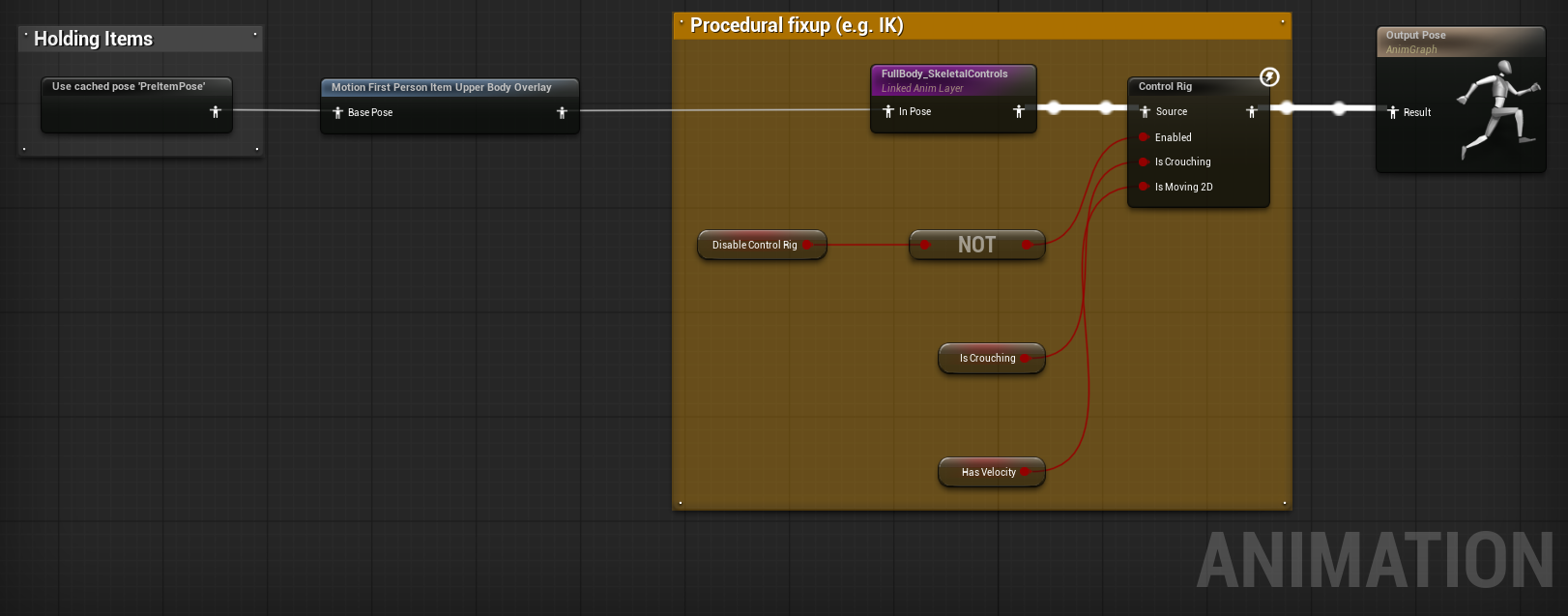
The automatic held pose resolver reads the bound ASC tag snapshot. The active config reads AutomaticHeldPoseSettings.HeldPoseAnimationRules first. Then, it reads single-tag HeldPoseAnimations. If no entry matches, it uses AutomaticHeldPoseSettings.FallbackHeldPoseAnimation.
No active first-person item config is a pass-through condition for the overlay. Do not add Blueprint variables only to copy crouch or sprint state. The native resolver reads the bound ASC.
Do not add per-item solve tuning variables to the host Animation Blueprint. UMotionNativeFirstPersonItemConfig owns item-specific solve, blend, transition, and presentation action values. MotionAnimInstance exposes only the effective config data and state accessors.
Verify binding
- Start PIE.
- Read
bIsAbilitySystemBound. - If it remains false, make sure that the character or its PlayerState owns an initialized ASC.
IAbilitySystemInterfaceis the preferred lookup path. Motion can also find an ASC component directly. - Enable logs if binding is delayed:
bash
log LogMotionAbilitySystemHelper Verbose
log LogMotionAbilitySystem Verbose
showdebug abilitysystem