Appearance
How to add Motion to a character
Use this guide to add Motion components to an existing project character.
Add the core components
- Open your character Blueprint or C++ class.
- Add the applicable movement components:
MotionWalkComponentMotionSprintingComponentMotionCrouchingComponentMotionJumpComponent
- Add the applicable support components:
MotionCameraComponent(replacing your existing camera)MotionBreathingComponentMotionMovementSoundComponentMotionHeldItemComponent
- Keep the default Motion
Profileassignment for each component. - For custom settings, duplicate a profile and assign the duplicate.
The supplied character shows the expected component structure. Your character can keep its parent class and use only the applicable Motion components.
Walk Speed Ownership
During initialization, MotionWalkComponent applies profile BaseWalkSpeed to CharacterMovementComponent->MaxWalkSpeed. The supplied default is 600.0. Later WalkSpeed attribute changes can replace MaxWalkSpeed at runtime.
Assign component profiles
These components read their behavior defaults from DataAsset profiles. New components use the Motion defaults in Plugins/MotionCore/Content/Motion/Profiles/v2_0_0:
| Component | Default profile |
|---|---|
MotionWalkComponent | DA_MotionWalkProfile_Default_v2_0_0 |
MotionSprintingComponent | DA_MotionSprintProfile_Default_v2_0_0 |
MotionCrouchingComponent | DA_MotionCrouchProfile_Default_v2_0_0 |
MotionJumpComponent | DA_MotionJumpProfile_Default_v2_0_0 |
MotionBreathingComponent | DA_MotionBreathingProfile_Default_v2_0_0 |
MotionMovementSoundComponent | DA_MotionMovementSoundProfile_Default_v2_0_0 |
MotionCameraComponent | DA_MotionCameraProfile_Default_v2_0_0 |
To change Motion behavior, duplicate the applicable profile in your project content folder. Edit the duplicate and assign it to the component Profile property.
Do not edit Motion-owned plugin profiles or tune equivalent behavior on the component as a second source of truth. See Component profiles for the full workflow and upgrade behavior.
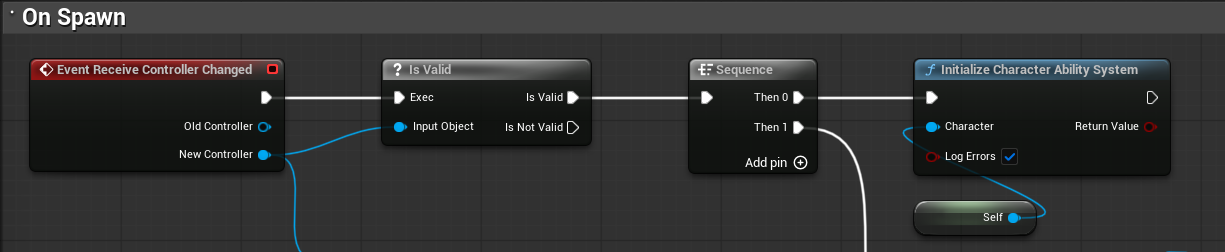
Initialize the Gameplay Ability System (GAS)
GAS is necessary for Motion 2.0. Each enabled component must resolve an initialized ASC with the documented attributes and GameplayEffects.
Motion disables the affected feature when the ASC is unavailable.
If your project initializes the Gameplay Ability System manually, initialize the character/ASC pair after possession or once PlayerState is available:
cpp
UMotionAbilitySystemHelper::InitializeCharacterAbilitySystem(this, true);If no UMotionAttributeSet exists, a Motion component creates one on the server after ASC initialization.
To control movement with your own project attributes, retarget the profile GameplayEffects. Also synchronize the values with CharacterMovementComponent.
For a PlayerState-owned ASC, the GameMode must use a PlayerState that exposes the Ability System Component.
The shipped Motion character initializes the ASC after the framework objects are available.
Bind input
- Create or reuse Enhanced Input actions for sprint, crouch, and jump.
- Add the mapping context from your PlayerController or character setup.
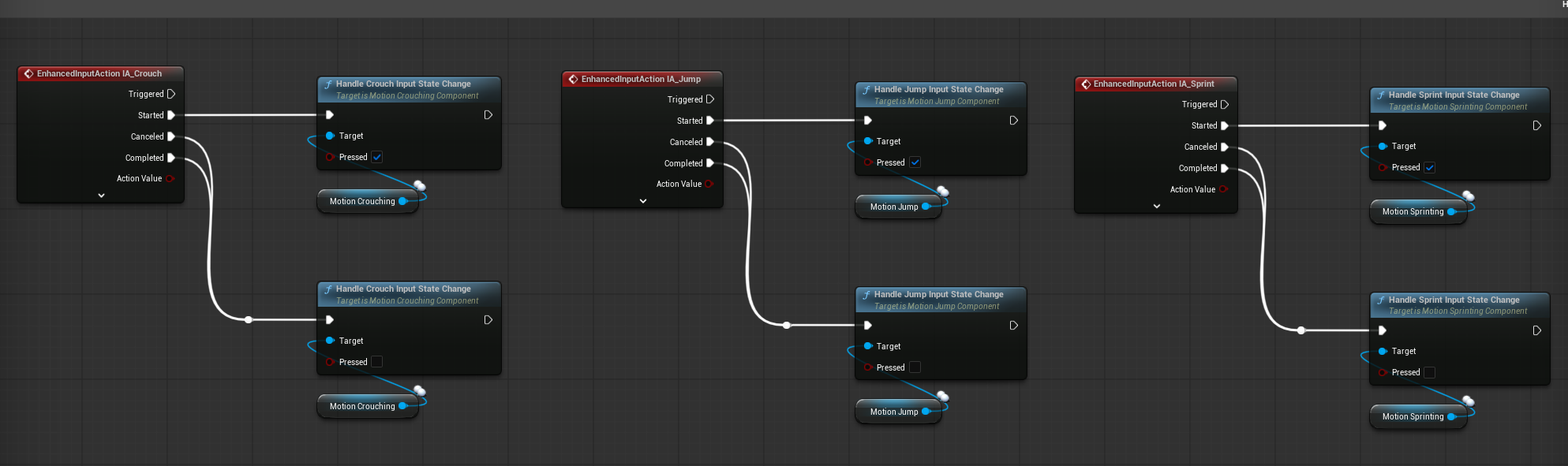
- Bind the start and completion events of each action to the component input handlers:
cpp
InputComponent->BindAction(SprintAction, ETriggerEvent::Started, MotionSprintComponent, &UMotionSprintingComponent::HandleSprintInputStateChange, true);
InputComponent->BindAction(SprintAction, ETriggerEvent::Completed, MotionSprintComponent, &UMotionSprintingComponent::HandleSprintInputStateChange, false);

InputComponent->BindAction(CrouchAction, ETriggerEvent::Started, MotionCrouchComponent, &UMotionCrouchingComponent::HandleCrouchInputStateChange, true);
InputComponent->BindAction(CrouchAction, ETriggerEvent::Completed, MotionCrouchComponent, &UMotionCrouchingComponent::HandleCrouchInputStateChange, false);

InputComponent->BindAction(JumpAction, ETriggerEvent::Started, MotionJumpComponent, &UMotionJumpComponent::HandleJumpInputStateChange, true);
InputComponent->BindAction(JumpAction, ETriggerEvent::Completed, MotionJumpComponent, &UMotionJumpComponent::HandleJumpInputStateChange, false);
See Create and use a Motion input for a guided walkthrough. It adds an action to IMC_Motion_KBM and connects it to Motion.
Use the shipped event graph as a reference for forwarding Enhanced Input action events to Motion components.
Set up animation state
For the built-in Motion animation state mapping:
- Set your Animation Blueprint parent class to
UMotionAnimInstance. - Map Motion GameplayTags to Blueprint variables in
GameplayTagPropertyMap. - Use the mapped variables in state machine transitions and blend spaces.
See How to set up MotionAnimInstance for the detailed animation workflow.
Add native first-person body meshes
Add two skeletal mesh components to the character:
FirstPersonUpperBodyFirstPersonLowerBody
Keep the standard character mesh as the full-body mesh for the world view. The three body meshes must share a skeleton and the weapon_r socket.
Motion uses a full-body MotionCamera socket as its evaluated body reference. Socket mode uses the valid pivot in CameraPivotSocketName as the camera origin. At runtime, UMotionCameraComponent assigns native first-person primitive roles for the local client.
Keep CameraPivotSocketName empty for Stable / Motion 1.6 mode. The camera starts from the capsule and ground path. It adds the camera height and offsets. StableCameraClearanceCurve blends the camera toward the calculated forward clearance. StableCameraClearancePadding adds space from the capsule surface. MaxStableCameraClearanceCorrection limits camera movement.
The Stable camera / Motion 1.6 camera anchor samples MotionCamera. It adds StablePresentationAnchorOffset and StablePresentationOffsetCurve. It moves only FirstPersonUpperBody and the attached item. MaxStablePresentationCorrection limits this movement. The same settings apply to all item and camera-height states.
Set CameraPivotSocketName to a valid socket to use Socket mode. The socket supplies the raw camera origin. Stable clearance is inactive. A missing requested socket causes an error. Motion does not use Stable mode as a fallback.
In the two modes, FirstPersonUpperBody compensates for world-obstruction displacement. FirstPersonLowerBody stays at its authored ground transform.