Appearance
How to create and link an animation layer
Use this guide when a broader Motion pose set is necessary for an item, stance, or presentation mode. Do not create a linked layer only for the basic first-person held pose. For that path, use the automatic held pose overlay from AutomaticHeldPoseSettings in the item config.
Create the layer
- Locate
ABP_ItemAnimLayersBaseinPlugins/MotionCore Content/EpicGames/Characters/Heroes/Mannequin/Animations/LinkedLayers. - Create a child Animation Blueprint.
- Rename it for the role it represents, such as
ABP_ShotgunAnimLayers. - Keep it parented to
ABP_ItemAnimLayersBase.
Most layers start as data overrides rather than copied graph logic.
Assign animation assets
Open the new ABP_*AnimLayers Blueprint and assign the exposed animation variables.
Usual groups include:
- Idle: standing and crouched idle animations.
- Walk and jog cardinals: forward, backward, left, and right clips.
- Starts, stops, pivots: directional transition clips.
- Jump: start, loop, apex, fall, and land clips.
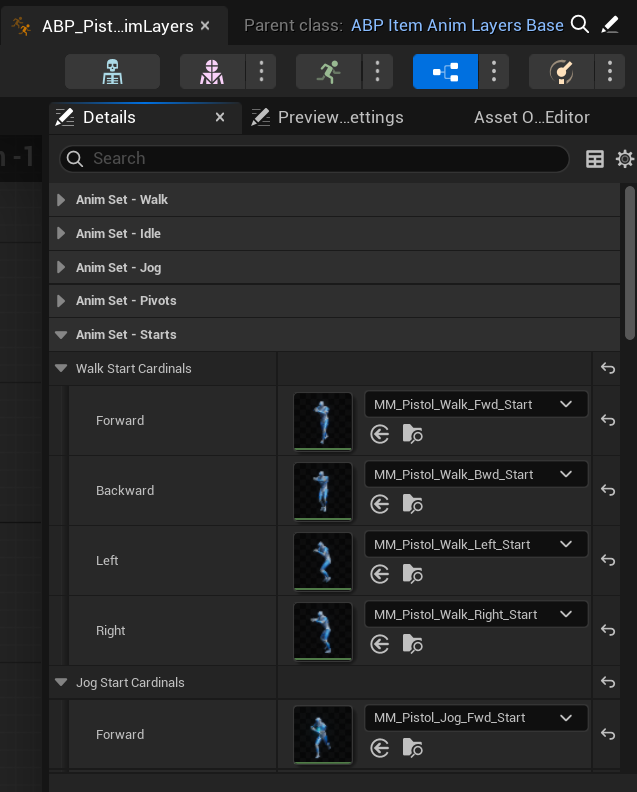
Use ABP_UnarmedAnimLayers as the starting reference and ABP_PistolAnimLayers as the item example.
Add custom graph logic only when necessary
Good candidates for custom graph logic include:
- unique aiming behavior in
FullBody_Aiming - item-specific hand IK in
FullBody_SkeletalControls - left-hand override behavior through
LeftHandPose_OverrideState
Keep custom logic close to the layer function it affects.
Link the layer
For local first-person items:
- Create or open a
MotionNativeFirstPersonItemConfigasset. - Set a valid first-person/world presentation pair.
- For automatic mode, set
AutomaticHeldPoseSettings.FallbackHeldPoseAnimationand optional gameplay tag held pose entries. - Set
LinkedLayerClassto your newABP_*AnimLayersclass only if the linked-layer pose set is necessary. - Set the first-person and world relative transforms.
- Set that config as the active item config.
For this path, do not call Link Anim Class Layers. UMotionHeldItemComponent calls it when the active config changes and a linked layer class is assigned. Automatic overlay-only configs can leave LinkedLayerClass empty.
For non-item systems, call Link Anim Class Layers from the system that owns the stance or presentation mode change.
Do a test of the layer
- Start PIE.
- Activate the item or stance that links the new layer.
- Walk, jog, sprint, crouch, jump, and land.
- Aim up and down if the layer changes aim offsets or upper-body behavior.
- Equip and unequip during movement.
To validate the basic held pose, do a test of each held pose rule and single-tag entry. Each entry must select the specified item held pose animation. Also, do a test of the fallback state. The host locomotion graph must supply locomotion states. The overlay supplies only item held pose visuals.